 Focus Jungle
GUILD FIELD GUIDE / DISCORD
Make your server
part of the jungle.
Use the Focus Jungle bot in your own Discord server. Give progress a place to appear, keep a weekly ritual, and let members share their study story as a PNG card.
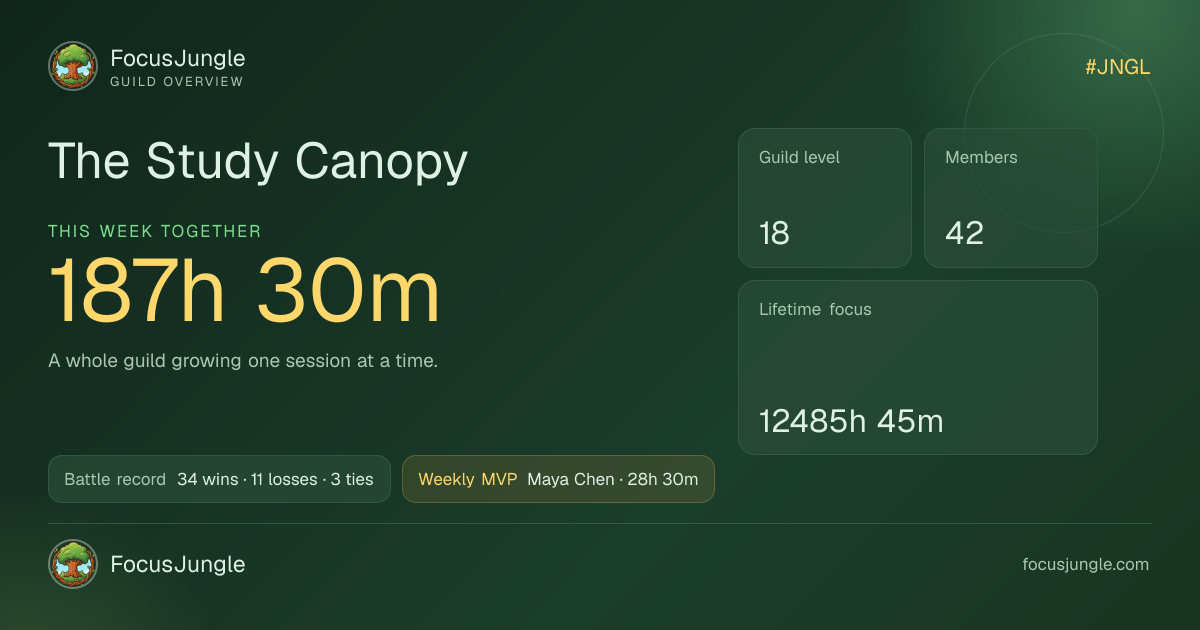
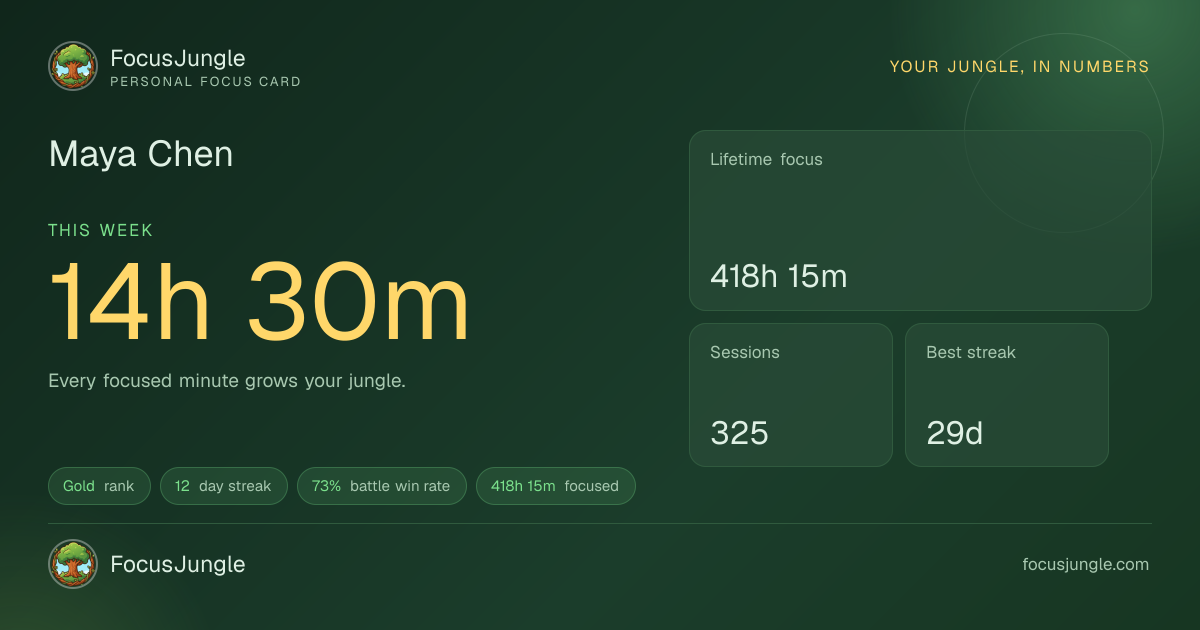
A GLIMPSE OF THE GUILD
Progress worth sharing.
Example cards · demo data
HOW IT WORKS
One bot. A space that feels like yours.
Focus Jungle runs one shared bot. An owner or moderator installs it in the Discord server their community already uses and links that server to one Focus Jungle guild. Server admins choose where updates appear with Discord slash commands.
Members can connect their personal Discord account and use /stats in any server with the bot installed. Guild leaderboards, recaps and automatic posts use this server’s guild link. Your Discord conversation remains in Discord.
SETUP / ABOUT 5 MINUTES
From empty channels to a live guild.
- 01
Open Guild Settings and invite the bot
Open your guild in Focus Jungle and select Settings → Discord. Use the install button there to choose your Discord server. You need permission to manage that server. If the install button is unavailable, installation is temporarily unavailable. Come back when it appears.
- 02
Create three channels, or choose existing ones
The names below are suggestions. Keep alerts separate from analytics so session updates do not bury the weekly recap.
#guild-alertsAlerts
Completed focus sessions and guild battle updates appear here. Keep this channel for the moments that bring people back.
#guild-analyticsAnalytics
Weekly leaderboard and MVP recaps land here. Members can use /leaderboard and /guild for a current snapshot.
#guild-chatCommunity
A place to plan a session, encourage each other and talk after the timer. Chat stays in Discord; it is not mirrored to the app.
Give the bot access to the channels you pick: View Channel, Send Messages, Embed Links and Attach Files. Members need permission to use application commands for the slash commands to appear.
- 03
Bind your guild
In Guild Settings, generate a guild link code. In the Discord server you chose, run
/linkand enter that code. It expires after 10 minutes. Return to Guild Settings and refresh to see the linked status. A Focus Jungle guild links to one Discord server at a time. - 04
Route updates and check the result
Run
/setupin Discord. Select your real channels in its alerts, analytics and community options. Run/statusto check the link, channel choices and bot permissions. You can rerun/setupwith just one option whenever you move a channel.EXAMPLE/setup alerts:#guild-alerts analytics:#guild-analytics community:#guild-chat - 05
Connect yourself and try a card
In your personal Focus Jungle Settings, choose Connect Discord and generate a personal code. Run
/connectwith that code in any server with the bot installed. Try/statsthere for your personal PNG card. In the linked guild server, try/leaderboardor/guildfor a guild snapshot.
A SIMPLE WEEKLY RHYTHM
Give the numbers a reason to matter.
Members finish real focus sessions. Eligible sessions appear in alerts. The guild can use the channel for encouragement, then get back to work.
The analytics channel gets a weekly leaderboard and MVP recap when the weekly recap is enabled.
Use slash commands for current PNG snapshots. Start a conversation in community chat about what to tackle next.
YOU SET THE PACE
Useful signals, with control.
Guild owners and moderators can turn session posts, battle alerts and the weekly recap on or off in Guild Settings, and set the minimum session length for the feed. Channel changes happen through /setup in Discord, where permissions can be checked.
Personal linking uses a short-lived code. Discord users who have not connected their Focus Jungle account do not get personal stats. The bot responds to commands and scheduled events; it does not read your everyday chat to power this feature.
READY WHEN YOUR GUILD IS